The SysGauge GUI application provides a number of user-selectable GUI layouts allowing one to customize the GUI application for
user-specific needs and preferences. In order to change the GUI layout, press the 'Layout' button located on the main toolbar
and select and appropriate menu item.

The default GUI layout shows the counter list in the bottom view, the current counter gauge on the left side of the top view and
the current counter history chart on the right side of the top view. The 'History Chart' layout shows the counter list in the bottom
view and the current counter history chart in the top view. The 'Charts' layout shows the counter list in the bottom view and
all history charts in the top view.
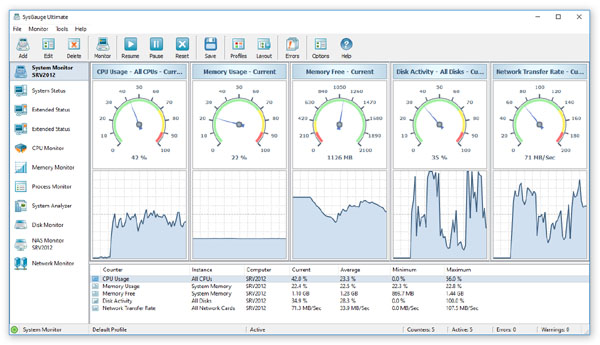
The 'Gauges' layout shows the counter list in the bottom view and all gauges in the top view. The 'Combo' layout shows the counter
list in the bottom view and combined gauges and history charts for all counters in the top view. Finally, the 'List' layout shows
only the counter list.